
Manual · Connect
Connector for AI apps (MCP)
Let an AI app on your PC, such as Claude Desktop or ChatGPT desktop, search and read your A9 Voice notes, so you can ask it about your meetings. It is read only, off until you turn it on, and nothing leaves your PC except what that app reads.
Last updated for A9 Voice 0.6.0
The connector is a small helper that AI apps can start on your PC. Once an app is connected, you can ask it things like "What did Priya say about the approval routing?" or "What action items do I have from this week?" and it looks the answer up in your notes.
It is also called an MCP server, which is the name the AI apps use for a connector they run on your own PC. You will see "MCP" in those apps' settings.
What the connector does#
- It runs on your PC. The AI app starts it itself as a small background program with no window and no tray icon. A9 Voice does not have to be open. It reads your notes from the same place A9 Voice keeps them.
- It is read only. It can search and read. It cannot add, change or delete a note.
- It is off by default. Until you turn it on, an app that asks gets a short message instead of your notes: "The A9 Voice connector is turned off. Turn it on in A9 Voice › Settings › Connectors."
- You choose the apps. Nothing is shared until you connect an app yourself.
What an AI app can ask for#
Once you connect an app, it can use four tools. All four are marked read only.
| Tool | What it returns |
|---|---|
search_notes | The best matches for some words: the note's id, title and date, the time in the meeting, who spoke, which part matched and a snippet. It can be narrowed by date range, tag, person, meeting name, or notes versus dictations. Up to 50 results (10 unless it asks for more). |
list_notes | Your notes, newest first: id, title, date, length, tags and people. It can be narrowed by date, tag and person. Up to 100 (20 unless it asks for more). |
read_note | One note: its summary (the default), its full transcript with [mm:ss] Speaker lines, or the notes you typed during the meeting. |
get_action_items | Action items, newest first: the task, owner, due date, whether it is ticked off, and the note it came from. Done items are left out unless it asks for them. |
The tools cover your A9 Voice notes and any folders you added under Settings › Notes › Search (see Search and Ask). Your dictations are included in search results while Search dictations too in Settings › General is on. It is on for a new install; switch it off to keep dictations out.
What an AI app can never get#
- Audio. No recording, ever.
- Voiceprints. The voices A9 Voice has learned (see Voices) are not part of any tool's answer.
- Your keys and settings. The tools return notes only.
What it can read once you connect it#
Plainly: a connected app can read the titles, dates, summaries, full transcripts (with the speakers' names), typed notes, image captions, tags and action items of the notes it asks for, and it can ask for as many as it likes. A transcript is everything that was said in the meeting.
When the app reads something, that text becomes part of your conversation with the app. From that point it is handled by that app and the service behind it, under their own terms and privacy settings, not by A9 Voice. A9 Voice cannot see what the app does with it afterwards. Connect only apps you trust with your meetings, and use the switch to turn the connector off when you do not want to share.
Turn it on#
Open Settings › Connectors.
Switch Connector for AI apps on. The switch is marked 1 below.
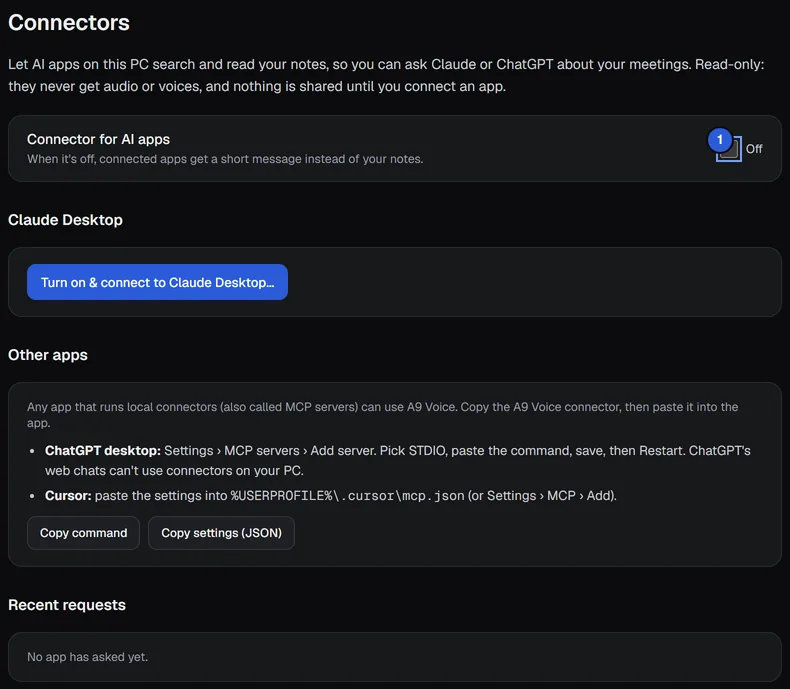
Then connect an app: either Claude Desktop with one button, or any other app by pasting a command.
Connect Claude Desktop#
Under Claude Desktop, click Connect to Claude Desktop... (or Turn on & connect to Claude Desktop... if the switch is still off).
A9 Voice first shows what it will change, before it changes anything. It lists one line: it adds (or updates, if it is already there) an entry called
a9-voice, the "A9 Voice notes connector", in Claude Desktop's settings file.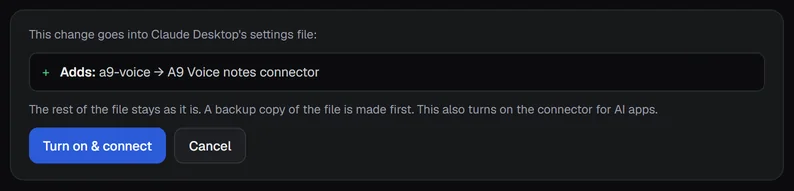
The rest of the file stays exactly as it is. Your other connectors and settings are not touched. If the file already exists, A9 Voice makes a backup copy of it first, in the same folder, with
.a9v-backupadded to the name.Click Connect (or Turn on & connect, which also turns the connector on), or Cancel to change nothing.
Quit Claude Desktop completely and open it again, so it loads the new connector. The page says "Connected, and the connector is on. Quit and reopen Claude Desktop to load it."
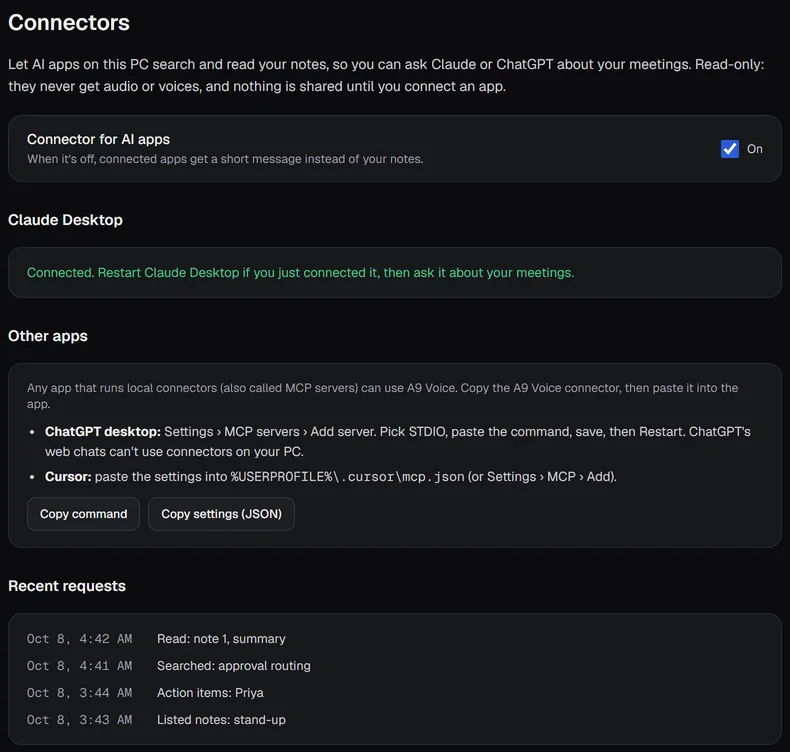
Claude Desktop's settings file is %APPDATA%\Claude\claude_desktop_config.json.
If Claude Desktop is not installed on your PC, the page says so ("Claude Desktop isn't installed on this PC. You can connect it later, or use the steps for other apps below.").

Connect ChatGPT desktop or another app#
Under Other apps, A9 Voice gives you two things to copy.
- Copy command copies the command that starts the connector: the full path to A9 Voice's program followed by
--mcp. - Copy settings (JSON) copies the same thing as a settings block, for apps that read a settings file.
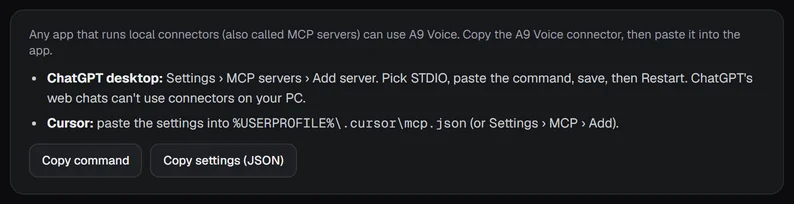
The steps, as the page words them:
- ChatGPT desktop: Settings › MCP servers › Add server. Pick STDIO, paste the command, save, then Restart. ChatGPT's web chats can't use connectors on your PC: it has to be the desktop app.
- Cursor: paste the settings into
%USERPROFILE%\.cursor\mcp.json(or Settings › MCP › Add).
Any other app that runs local connectors (the page calls them MCP servers) can use A9 Voice the same way: paste the command, or the settings, where that app asks for a local server.
The names and screens of those apps are theirs and can change. If a step does not match what you see, look for the app's own section on connectors or MCP servers.
See what apps asked#
Recent requests lists what connected apps have asked for, newest first: the time, what kind of request it was (Searched, Listed notes, Read, Action items) and what it was about, such as the words searched. It keeps the latest requests on your PC, nothing more.

Requests made while the connector is off are not run, so they do not show here.
Turn it off or remove it#
- Pause sharing: switch Connector for AI apps off. Connected apps stay set up, but they get the short "turned off" message instead of your notes. Switch it back on to resume.
- Remove an app for good: A9 Voice has no remove button. In the other app, delete the
a9-voiceconnector in its own settings. For Claude Desktop that means removing thea9-voiceentry fromclaude_desktop_config.json(A9 Voice's backup,claude_desktop_config.json.a9v-backup, is the file as it was before). The A9 Voice page shows "Connected" for as long as that entry is there.
If something goes wrong#
- The AI app says it has no tools from A9 Voice. Quit and reopen the app fully after connecting, and check that the switch on Settings › Connectors is On.
- The app says the connector is turned off. Switch Connector for AI apps on.
- Connect to Claude Desktop shows an error about the file. The settings file is not valid JSON. Fix or remove it, then try again.
- A9 Voice does not show Connected after you moved or reinstalled it. The connected entry points to where A9 Voice was installed. Click Connect again to update it.
More in Troubleshooting.
Related#
- Search and Ask: the same notes, searched from inside A9 Voice.
- Voices: voiceprints stay on your PC and are never part of the connector.
- Privacy and your data: everything A9 Voice sends and stores.
Something missing or wrong? Report an issue, or use Copy diagnostics in Settings › General when asking for help.