
Manual · Notes
Templates and export
Choose how each summary is written, put your own logo on it, and save or send a note as Markdown, a PDF, a Word file, an email or captions.
Last updated for A9 Voice 0.7.1
A template decides what a summary contains: which sections, in what order, with what rules. It can also carry your logo and colors. When you export a note, you pick what to save (the summary, the transcript or the audio) and in which file type.
Templates live in Settings › Notes › Templates. Export is the Export button on every note page.
To see a note's files, the Export window and a template added from the library:
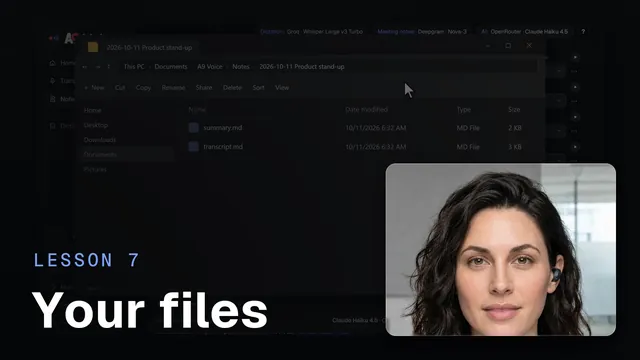 Your notes, your filesWatch the 45-second video
Templates#
This page covers summary templates. Settings › Templates also has Ask templates, which decide how Ask your notes answers; see Edit the templates.
Open the templates#
- Click Settings in the sidebar.
- Under the Notes heading, click Templates.
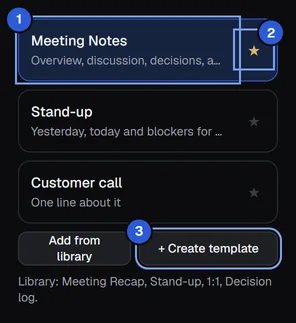
The page is called Summary templates. On the left is your list. The one with the amber star is the default: new recordings use it. It is the same choice as Summary template in Settings › Notes › Transcript & summary. You can pick another template for one note on its note page, under Regenerate summary.
A9 Voice comes with one template, Meeting Notes. It writes five sections: Overview, Key discussion points, Decisions, Action items and Open questions. You can edit it like any other template; it shows a Built-in label.
Click a template to open it on the right. To make it the default, click its star (the tooltip says "Make default"). If you have unsaved changes and click another template, A9 Voice asks "Discard your changes?".
Add a template from the library#
- Click Add from library.
- Choose one of the four:
| Template | What it writes |
|---|---|
| Meeting Recap | A short recap to share: summary, decisions, next steps. |
| Stand-up | Yesterday, today and blockers for each person, then action items. It adds the tag #stand-up. |
| 1:1 | Updates, feedback and follow-ups. It adds the tag #1:1. |
| Decision log | Only the decisions: what, why, who decided, then alternatives considered and follow-ups. It adds the tag #decision. |
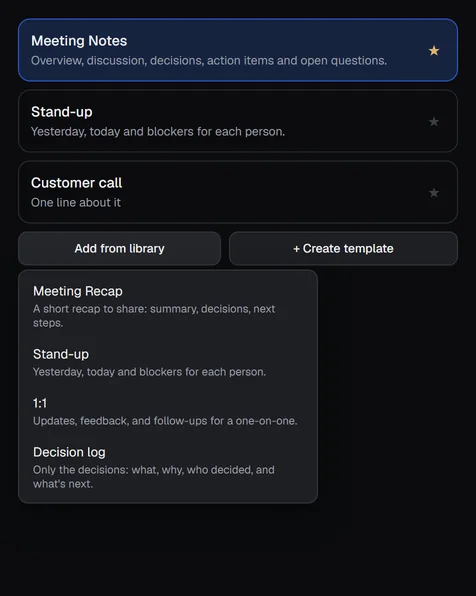
The template is copied into your list at once and opened, so you can change it. The library has no logo; branding is set per template.
Create your own#
Click + Create template. A new template named New template appears in the list, with two sections (Summary and Action items) and the same rules as Meeting Notes. It is saved straight away; change what you like and click Save.
Change the name, the sections and the rules#
Everything below is on the right of the list.
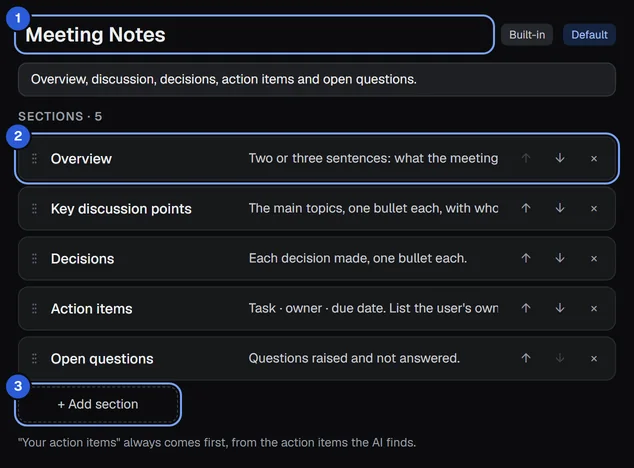
- Type a name and a one-line description. Click Save when you are done. (Save and Cancel stay grey until you change something.)
- Under SECTIONS, each row has a heading and an instruction that tells the AI what to write there: for example heading Decisions, instruction "Each decision made, one bullet each."
- Drag a row by its grip (⋮⋮), or use ↑ and ↓, to change the order. Click × to remove a section. Click + Add section for a new one. A section with an empty heading is dropped when you save.
- The summary always starts with Your action items, taken from the action items the AI finds, whatever sections you have.
Under RULES you can change the rules the AI follows, one per line. Meeting Notes starts with these four: write "Not discussed" when a section has nothing in the transcript and never invent anything; attribute statements to speakers only when the transcript labels them; use the Dictionary spellings; and stay professional about people. A9 Voice adds the last rule to every prompt even if you delete it.
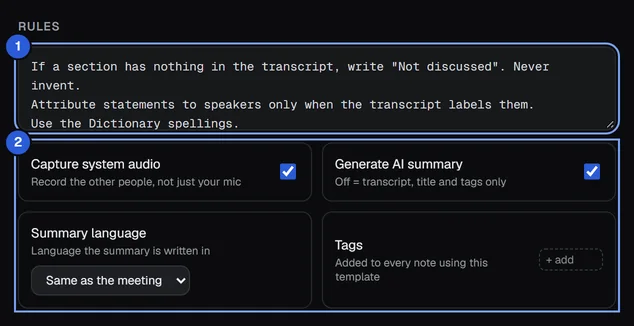
Then four options:
- Capture system audio: "Record the other people, not just your mic." Turn it off and a recording that starts with this template as the default records only your microphone. It only matters if Computer audio (Them) is on in Settings › Notes › Recording.
- Generate AI summary: "Off = transcript, title and tags only." With it off, no summary is written; you still get the transcript, a title and tags.
- Summary language: Same as the meeting (the default), or English, Spanish, French, German, Portuguese, Italian, Dutch, Japanese or Chinese.
- Tags: tags that are added to every note that uses this template. Type a tag and press Enter; click its × to remove it.
Custom instructions and the full prompt#
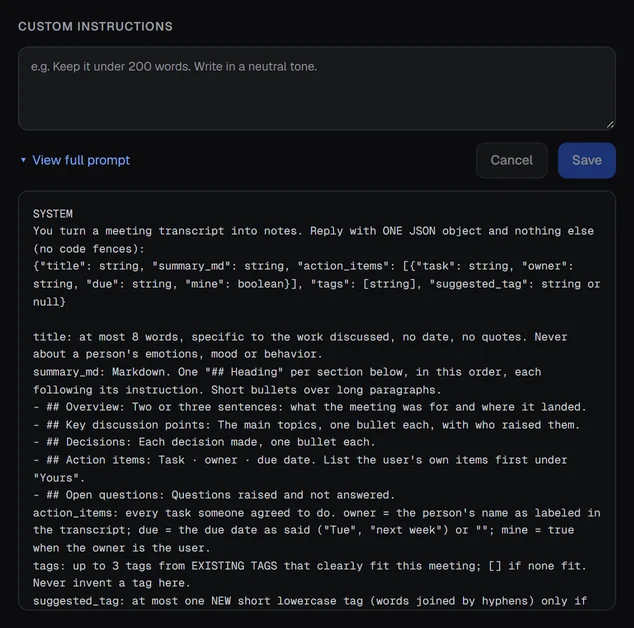
CUSTOM INSTRUCTIONS is free text added to the end, for example "Keep it under 200 words. Write in a neutral tone."
Click View full prompt to see exactly what is sent to your language model: the instructions, your sections, your rules, and a place-holder where the transcript goes. Click it again to hide it. It shows the text that the AI receives, so you can check how your changes read.
Save, cancel, delete#
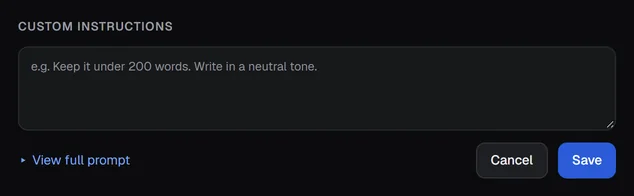
- Save keeps your changes; "Saved" appears for a moment. Cancel goes back to what you last saved.
- Delete… removes a template; click Delete template to confirm. You cannot delete the default one: make another template the default first. Notes you already made keep their summaries.
Changes to a template do not change summaries that already exist. To use a new version on an old note, open it and click Regenerate summary; see The note page.
Branding#
Branding puts your logo, a header and your colors on what you share. Each template has its own, so you can use one look for client notes and another for internal ones.
Branding appears on PDF, Word and HTML email exports and on Copy for email. It does not go into Markdown, Plain text, captions or the note's own summary.md, which stay plain.
Which branding a note uses depends on its template: the one it was made with, or the one you chose on the last Regenerate summary. If that template was deleted, the default template's branding is used.
Scroll to BRANDING in the template.
Add a logo#
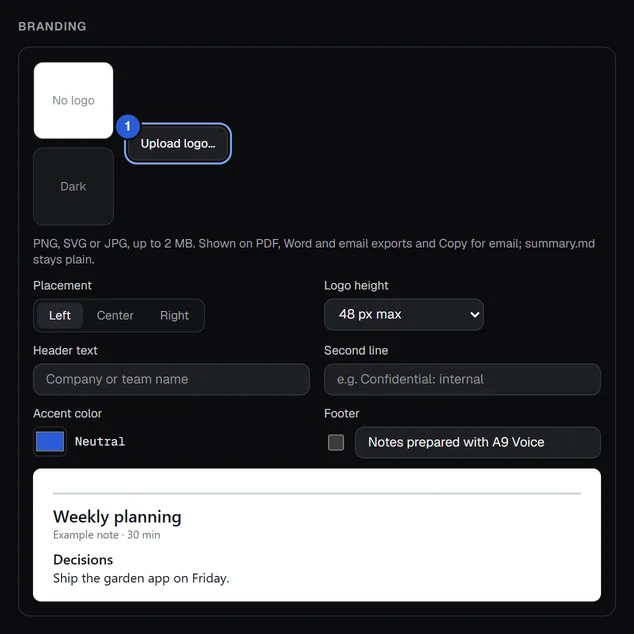
- Click Upload logo….
- In the Windows window that opens ("Choose a logo"), pick a PNG, SVG or JPG file. It can be up to 2 MB.
- The logo appears at once in the two preview boxes, on a light and on a dark background. It is saved right away, even if you cancel your other changes.
If the file is the wrong type or too big, a message says so: "Use a PNG, SVG or JPG file." or "That file is over 2 MB. Use a smaller logo." A9 Voice makes a PNG copy of an SVG logo, because Word and mail apps cannot show SVG.
Click Replace logo… to pick another file, or Remove to take it away.
Add a version for dark backgrounds (optional)#
If your logo is dark and disappears on a dark background, click Add a version for dark backgrounds and pick a second file. It is used in the HTML email file, when the person who opens it has dark mode. Everything else uses the main logo. Replace a version for dark backgrounds and Remove dark version change or remove it.
Place and size it, add a header and a footer#
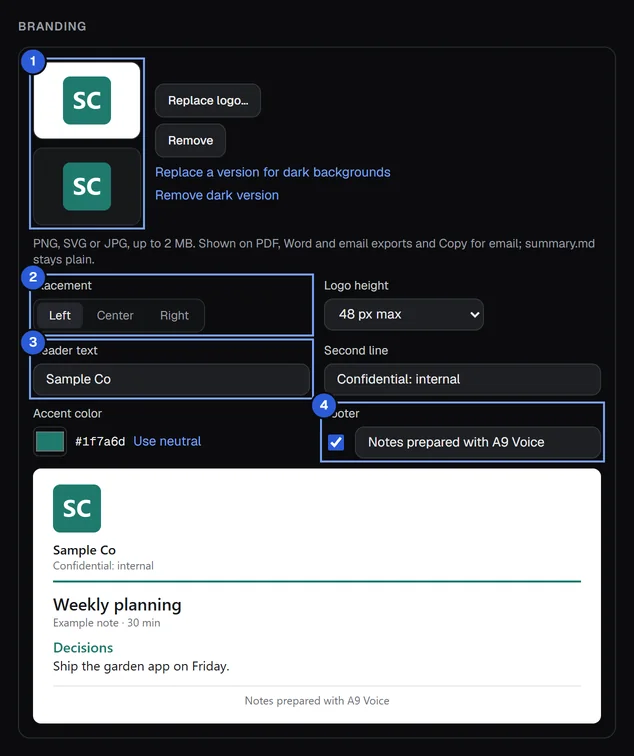
- Placement: Left, Center or Right.
- Logo height: 32 px max, 48 px max or 64 px max.
- Header text: your company or team name, shown under the logo.
- Second line: for example "Confidential: internal".
- Accent color: pick a color for headings and the dividing line. Neutral means no color; click Use neutral to go back to it.
- Footer: tick it and write the text. The text starts as "Notes prepared with A9 Voice"; change it to anything you like. In a PDF it is at the bottom of each page; in an email file it is the last line.
The box at the bottom shows how the top of a page will look, with an example title and a Decisions heading. Click Save.
A word on Word: in a Word file, the logo, header text and divider are in the page header on every page, headings use your accent color, and the footer is a line at the bottom if you turned it on.
Export a note#
Open a note and click Export, or choose ⋯ › Export…. Export is greyed out while the note is still recording.
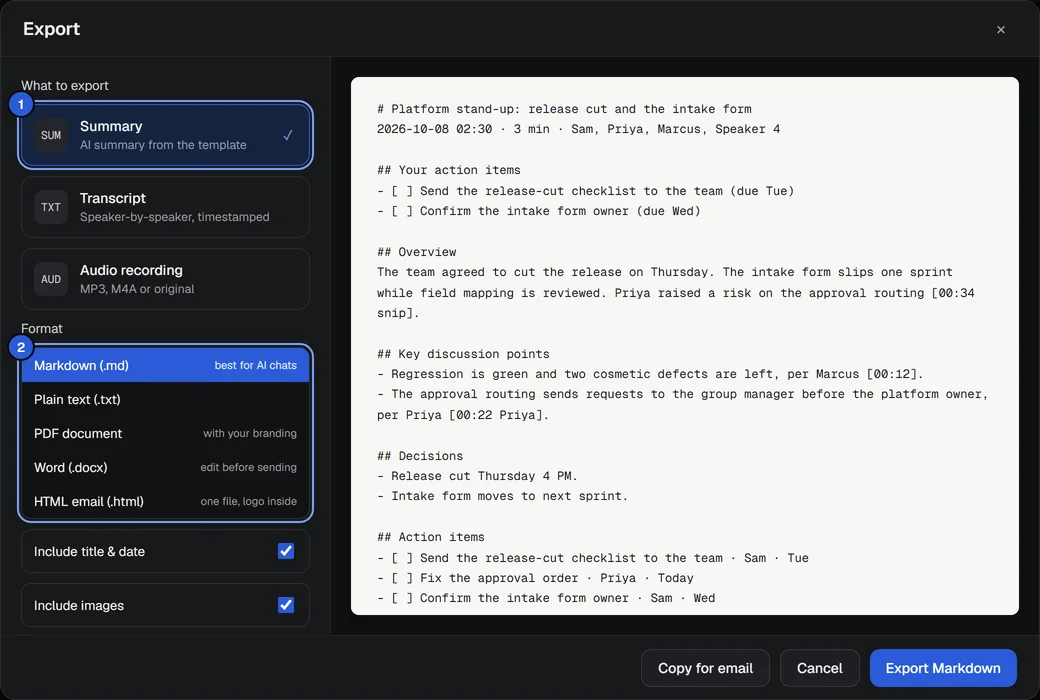
Under What to export, choose one:
- Summary: "AI summary from the template".
- Transcript: "Speaker-by-speaker, timestamped".
- Audio recording: "MP3, M4A or original".
A choice is greyed out when there is nothing to export: "Not available yet" if the note has no summary or transcript, and "Audio removed" if the audio has been deleted.
Under Format, choose the file type (the list changes with step 1; see the table below).
Set the switches under the format list (below).
Look at the preview. It shows what will be written.
Click Export with the format's name, for example Export Markdown or Export PDF.
Windows asks where to save the file. It starts in your Downloads folder with a name such as "Platform stand-up summary.md". Choose a place and click Save.
When it is done the window says Saved. and shows Show in folder, which opens the file's place in File Explorer. Then click Close. Cancel closes the window without saving.
What each file type is for#
| You export | Format | What you get |
|---|---|---|
| Summary | Markdown (.md) (best for AI chats) | Plain text with headings and - [ ] check boxes. Pictures are links to the files in the note's folder. |
| Summary | Plain text (.txt) | The same without the Markdown marks. |
| Summary | PDF document (with your branding) | A printed page with your logo, header, accent and footer. |
| Summary | Word (.docx) (edit before sending) | The same as a Word file you can change. |
| Summary | HTML email (.html) (one file, logo inside) | One file that holds the whole message, logo included. Open it in a browser, or send it. |
| Transcript | Markdown (.md) | Every line as [mm:ss] Name: text. Good to paste into an AI chat. |
| Transcript | Plain text (.txt) | The same lines without the Markdown. |
| Transcript | WebVTT (.vtt) (captions) | A captions file for video players: one cue per turn, with the speaker's name. |
| Transcript | SubRip (.srt) (captions) | The same captions in the other common captions format. |
| Transcript | PDF document and Word (.docx) | The transcript on a page with your header. |
| Audio | MP3 (.mp3) (plays anywhere) | The whole recording, both sides, encoded by Windows at 128 kbit/s, 48 kHz. |
| Audio | M4A (.m4a) (AAC) | The same, as an M4A file. |
| Audio | Original (.ogg Opus) (smallest) | The file A9 Voice saved: two channels (you on the left, the others on the right). |
Only the PDF, Word and HTML email files carry your branding. The others stay plain.
The switches#
- Include title & date: starts the file with the note's title, then a line with the date, length and people. Available for every text, PDF, Word and email file; captions do not use it.
- Include images: adds the pictures of the note (Markdown, PDF and Word; in a text transcript a line such as "(image: Approval routing diagram)").
For a Summary as PDF, Word or HTML email, an Include group lets you cut parts:
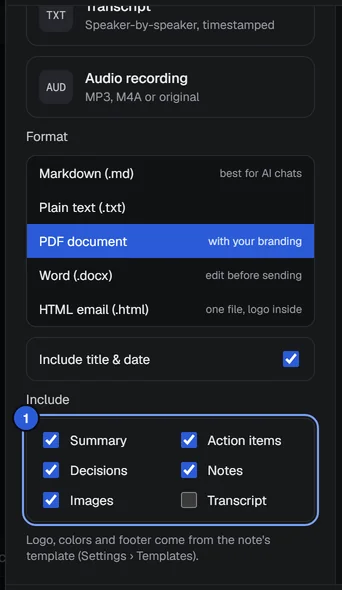
- Summary: the sections that are not action items or decisions.
- Action items: sections whose heading contains "action", "to-do", "todo", "follow-up" or "next step".
- Decisions: sections whose heading contains "decision".
- Notes: the notes you typed during the recording. Greyed out if you typed none.
- Images: the note's pictures. Greyed out if it has none.
- Transcript: adds the full transcript after the summary. Off by default.
Under it, a reminder: "Logo, colors and footer come from the note's template (Settings › Templates)."
Summary as a PDF#
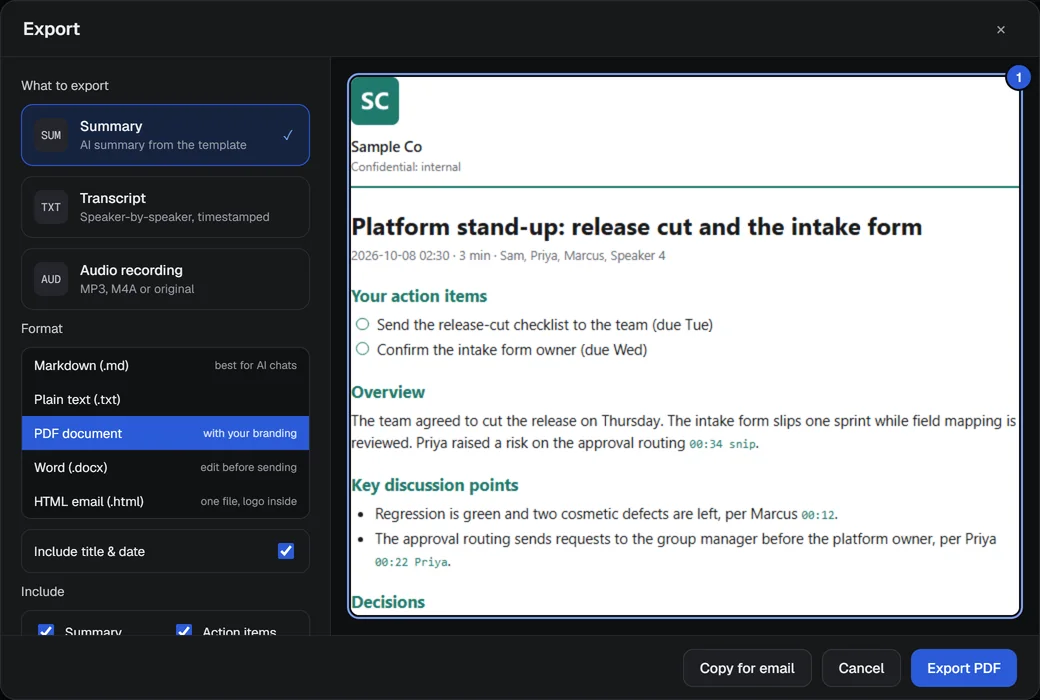
Choose Summary and PDF document. The preview shows the branded page. Export PDF prints that page to a file, so any language works, and pictures are included when Images is ticked.
Captions#
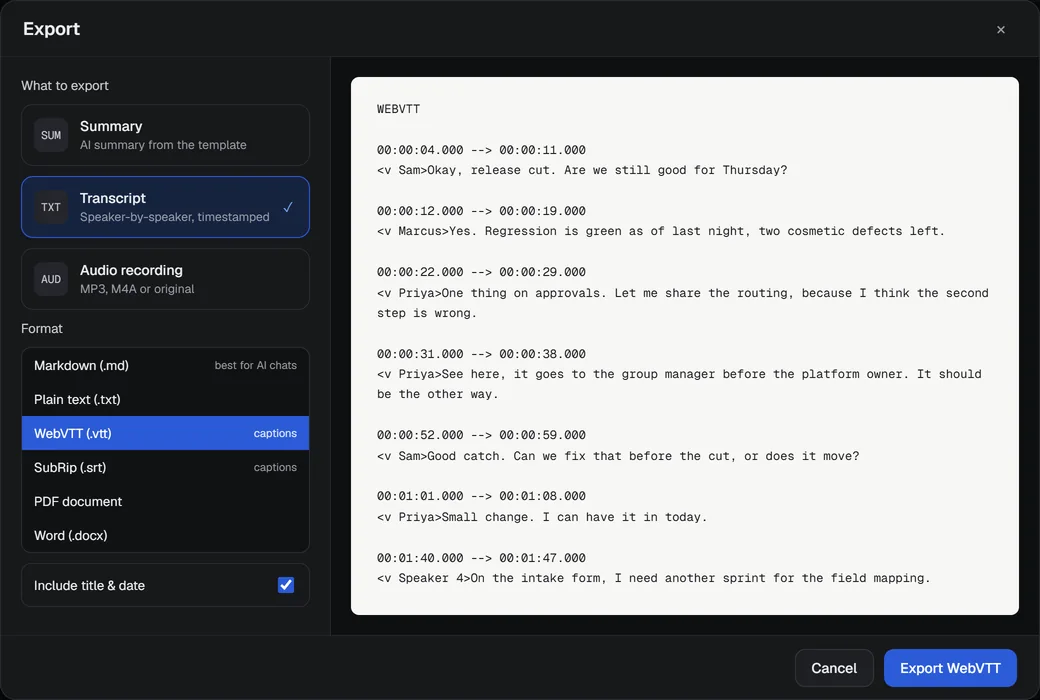
Choose Transcript, then WebVTT (.vtt) or SubRip (.srt). Use the file with a video of the same meeting so that each line appears on screen when it is said.
Audio#
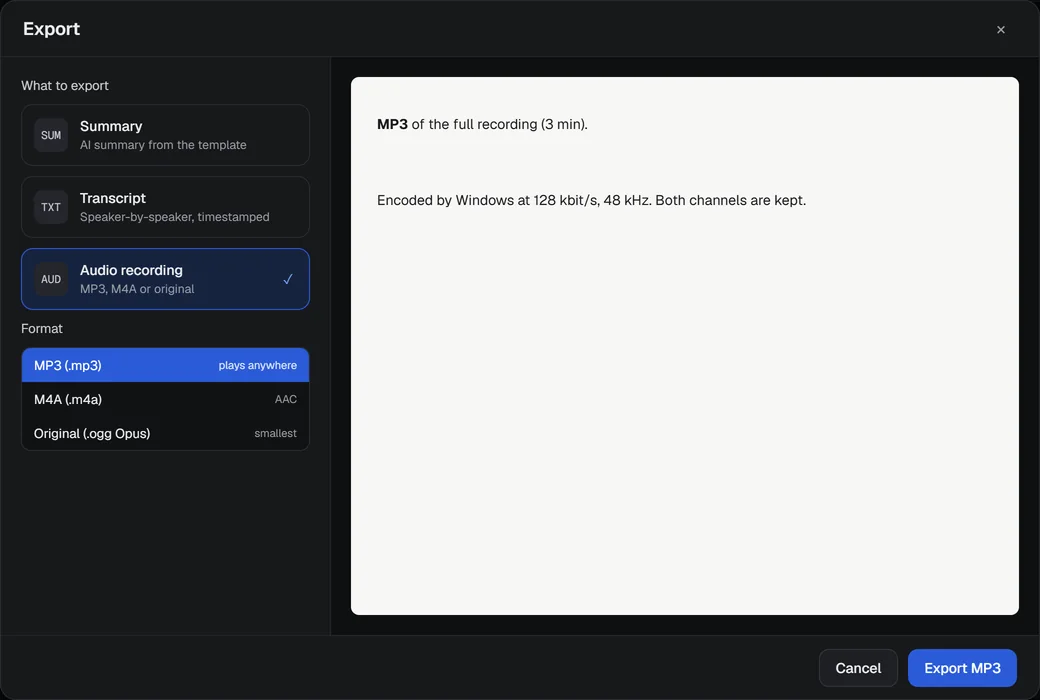
Choose Audio recording and one of the three types. There is no text preview, only a note of what you will get. The MP3 and M4A are made by the encoders built into Windows, so nothing extra is installed. Audio is only here while it is kept; see The note page.
Send a summary by email#
You can send a summary three ways.

- Copy for email (a button at the bottom whenever Summary is chosen, also in the note's ⋯ menu): copies the summary as a formatted message with your logo and colors. A line says "Copied. Paste it into a new email." Open a new message in your mail app and paste. The logo is drawn on white so it stays readable if the mail app uses dark mode. The plain-text version is copied too, for apps that cannot show formatting.
- Open in mail app (when HTML email (.html) is chosen): opens the summary as a new, unsent message in your default mail app, if that app supports it. You add the address and send it. If no mail app can open it, A9 Voice says "No mail app is set up to open emails on this PC. Save the HTML file instead."
- Export HTML email: saves one
.htmlfile that you can attach.

The email versions use the Include switches you set in the window. Copy for email from the note's ⋯ menu uses the title and the usual parts, without pictures.

If something goes wrong#
- Export says "Couldn't write the file". Choose another folder, and make sure a file with that name is not open in another program.
- The logo does not show. Check that the template you are using (the note's template, or the default) has the logo, and that the file is a PNG, SVG or JPG under 2 MB.
- Audio is greyed out. The audio was removed after the number of days in Settings › Notes › Storage › Keep notes audio.
- Open in mail app says "No mail app is set up to open emails on this PC." Use Copy for email and paste, or save the HTML file.
For anything else, see Troubleshooting.
Related#
- The note page: regenerate a summary with another template, and see what a note holds.
- Webhooks: send a summary to a channel automatically.
- Language models: the AI that writes the summary.
Something missing or wrong? Report an issue, or use Copy diagnostics in Settings › General when asking for help.