
Manual · Reference
Updates and channels
How A9 Voice keeps itself current, the difference between Stable and Dev, and how to check for or install an update yourself.
Last updated for A9 Voice 0.6.9
A9 Voice looks for updates in the background, downloads them, checks that they are genuine and installs them when it is safe to. You do not have to do anything, but you can check by hand, choose how early you get new builds, and decide when the app restarts.
Stable and Dev#
There are two channels. A channel is just a stream of builds you follow.
- Stable is the default for a new download. It gets a build once that build has proven reliable.
- Dev gets every new build first. You see new features sooner, and you may meet a rough edge before Stable does.
Choose Stable unless you want to try new things early. A build reaches Stable only after it has been tried on Dev. The Changelog lists what changed in each version.
Switch channel#
- Open Settings from the sidebar, then General.
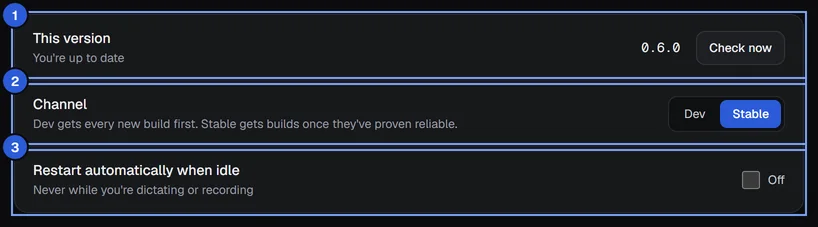
- Scroll to the Updates card, to the row called Channel.
- Pick Stable or Dev. A9 Voice checks for updates on that channel straight away.
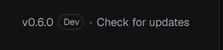
The version line at the bottom of the sidebar also shows which channel you are on: a small Dev tag appears next to the version when you follow Dev, and nothing appears on Stable. Click the version to jump to this card.
Going back to Stable#
Switching from Dev to Stable does not install an older version. A9 Voice only installs a build that is newer than the one you have, so if your Dev build is ahead of Stable, nothing changes until Stable catches up. After that, updates continue as normal on Stable.
How an update reaches you#
A9 Voice checks for an update a few seconds after it starts and then every 6 hours while it runs. The Check for updates link in the sidebar, Check now on the Updates card and Check for updates in the tray menu check right away.
- The check. A9 Voice asks a9voice.com and the project's release files on GitHub, all at once, for the newest build on your channel. It takes the newest build any of them offers, and prefers a9voice.com when they offer the same one. If one place is down, the others still count. The request to a9voice.com carries the anonymous count (a random ID, the version, the channel, your Windows version) unless you turned it off in Settings › Privacy; GitHub never gets it. See Anonymous usage counts.
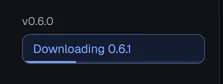
- The download. The update downloads in the background while you keep working. The sidebar shows Downloading with a small progress bar.
- The check of the download. Every update is signed. A9 Voice checks the signature against a key built into the app before it keeps the file. If the signature does not match, the update is thrown away and you see "The update failed its signature check and was not installed".
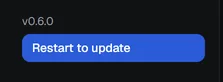
- Ready. The sidebar shows Restart to update, and the Updates card shows a banner, "Update ready", with a Restart A9 Voice button. The tray menu item changes to "Update ready — Restart A9 Voice".
- The restart. When you press the button, A9 Voice installs and starts again. Nothing you have recorded or typed is lost.
Before the installer starts, A9 Voice lets go of the microphone, the speakers, its shortcuts and its windows one at a time, so it leaves quickly. The installer then gives the old copy up to 10 seconds to close on its own, ends it if it is still there, and waits a few seconds more before it gives up with a message instead of an error. If an update did not finish, the next start of A9 Voice says so and tries once more when you are not dictating or recording.

The installer runs for your Windows user only. It does not ask for administrator rights and does not show a Windows permission (UAC) prompt, and your settings, history, notes and keys stay where they are. After an update the app comes back quietly in the tray, without opening its window, when Start minimized (Settings › General) is on.
The sidebar version line#
The bottom of the sidebar shows your version, for example v0.6.0, and one of these:
- Check for updates: press it to check now. It then says Checking…, and for a few seconds Up to date or Couldn't check.
- Downloading with the new version and a progress bar: an update is on its way.
- Restart to update: the update is ready. Press it to install now.
- Update after this recording: an update is ready but you are recording. Press it to queue the update; it installs when the recording and its note are finished. The button then becomes Updates after this recording, a label with nothing to press.
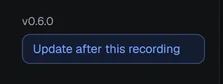
In a narrow window the sidebar shows icons only. The version then shortens (to v0.6), and hovering over it or over the update button tells the rest. If pressing Restart to update fails, a short message appears under it for a few seconds, for example "Busy dictating; try again in a moment".
Restart automatically when idle#
On the Updates card, Restart automatically when idle decides whether A9 Voice restarts into a ready update by itself.
- When it is on, A9 Voice restarts into the update once you have not dictated for 2 minutes. It never does this while you are dictating, or recording, or while a note is being written up.
- When it is off, the update waits until you press Restart to update.
- If you have never touched the switch, it is off on Stable and on for Dev.
Either way, an update you queued during a recording installs by itself once the recording and its note are done.
The Updates card#
The card is on Settings › General, under the General options and above the About card.
- This version shows the version you run and the last check: "Checking…", "You're up to date", "Downloading", an error message, or when it last checked ("Last checked 12 minutes ago"). Check now checks right away.
- Channel is the Dev / Stable choice described above.
- Restart automatically when idle is the switch described above.
Every option is described on the Settings reference.
If something goes wrong#
- "Couldn't reach the update server". The PC is offline or something blocks the connection. A9 Voice tries again at the next check. The update check is the only thing A9 Voice does on its own that is not part of a service you set up; see Privacy and data.
- "No release on the dev channel yet" (or stable). The channel has no build published yet. Switch channel or check again later.
- "The update failed its signature check and was not installed". The download did not match what the project signed, so A9 Voice refused it. Check again; if it keeps happening, see Troubleshooting.
- "The update to 0.6.9 didn't finish." You pressed Restart to update (or A9 Voice restarted itself when idle), but the installer never replaced the app, so this is still the old version. A9 Voice shows this once when it starts, and tries the update again by itself when you are not dictating or recording, once per start. You can also press Restart to update when it shows. If it keeps happening, restart the PC and update again, then see Troubleshooting.
- "A9 Voice is still closing. Restart your PC to finish the update; A9 Voice will update itself next time it starts." The installer could not end the running copy of A9 Voice, even after waiting and trying to force it. Nothing was changed: the version you had still works. Restart the PC; the update installs by itself the next time A9 Voice starts.
- The version line says "Couldn't check". The check could not finish. Press Check for updates again in a minute.
Related#
- Settings reference for the whole Updates card.
- Privacy and data for what the update check sends.
- Troubleshooting.
Something missing or wrong? Report an issue, or use Copy diagnostics in Settings › General when asking for help.