
Manual · Notes
Recording a meeting
Notes records a call, a video or a voice note from your microphone and your computer's audio, with no bot in the meeting. Use this page to start, watch and stop a recording, by hand or by itself.
Last updated for A9 Voice 0.7.4
New to it? Watch Sara record a first meeting.
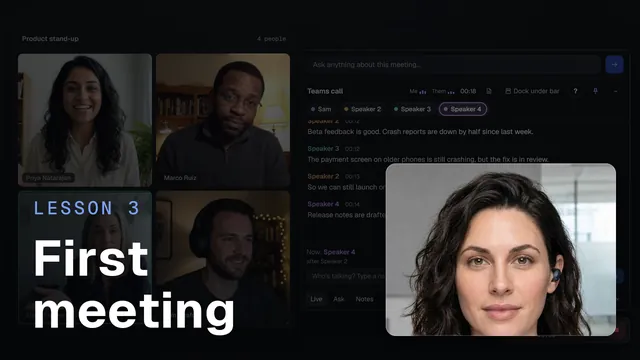 Your first meetingWatch the 1-minute video
What Notes records#
Notes records two sides at once and keeps them apart:
- Microphone (Me): your side. The meeting app keeps using the microphone as before; nothing is muted or changed.
- Computer audio (Them): whatever your speakers or headset play, which is the other people on a call.
No bot joins your meeting. A9 Voice listens on your PC.
While you record, the note is already in the Notes list. When you stop, it turns into a finished note: first the transcript, then the summary. See The note page for what you get.
Turn Notes on first#
Notes records nothing until you turn it on. Until then, Notes shows what it does and one button, Try Notes free for 30 days. Press it and the 30 days start: no signup, no card, and a PC that never presses it never starts a trial. If a call starts before that, a small card asks Want notes for this call? with Start trial and Not now. Nothing is recorded unless you press Start trial, and Not now keeps the card quiet for 7 days. If you were already using Notes (you have notes, or a meeting app set to start by itself) when you updated to 0.7.4, A9 Voice starts the 30 days for you on that first launch, so your recordings never just stop. The Notes page says so once, with Buy Notes, Enter a license key and Got it. Your notes stay in the list either way.
Start a recording by hand#
Use this for anything: a call A9 Voice did not notice, a video, a voice note.
Open Notes and press Record. You can also press Ctrl+Alt+N anywhere, or right-click the A9 Voice tray icon and choose Start recording.
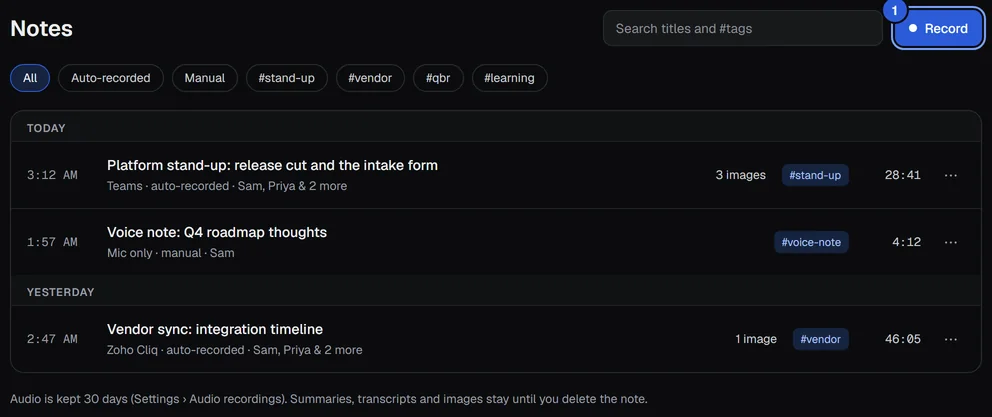
The Record button, top right of Notes. The recording bar appears on your screen and the note appears at the top of the list marked Recording. The sidebar button changes to Stop with the time. If you pressed the button in the app, A9 Voice also opens the new note.
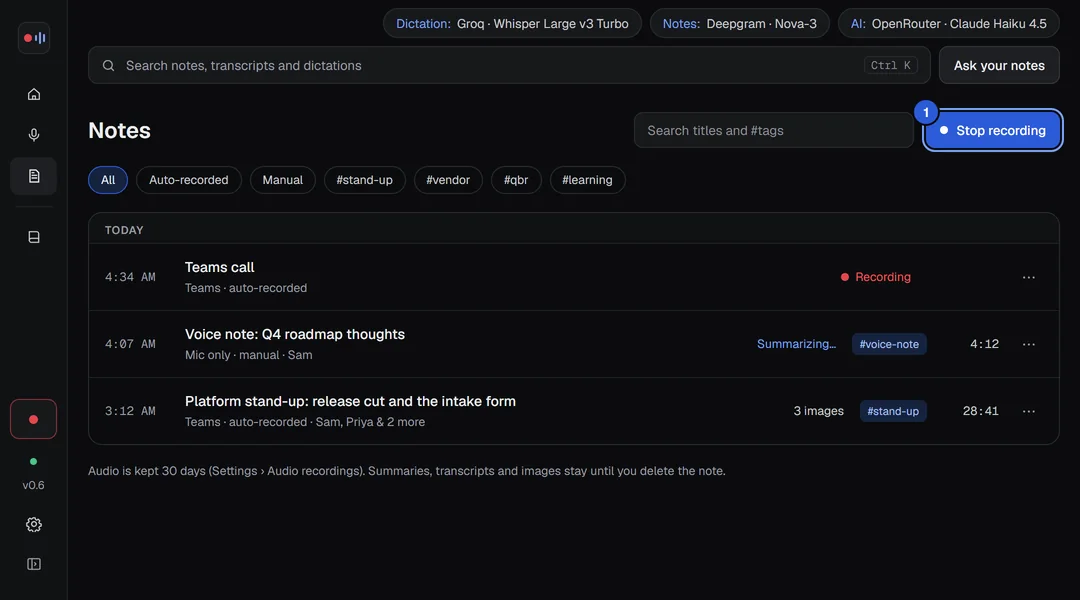
While you record, the note is in the list. A note that has just been stopped shows Transcribing or Summarizing.
You can change the record key in Settings › Notes › Recording (Record key), or clear it.
Let A9 Voice start it for you#
Choose the apps#
A9 Voice can start a recording by itself when a meeting app starts using your microphone. Open Settings › Notes › Recording and look at Meeting apps:
- Turn on the apps you use. Microsoft Teams and Zoho Cliq and Zoho Meeting are on to begin with. The others are Zoom, Webex, Slack huddles, Discord and Browser calls, and they start off.
- For a call in a web page (Google Meet, or Teams or Zoom on the web, in Chrome, Edge or Firefox), turn on Browser calls. Any web page that uses the microphone then counts.
- For any other app, use Other app. Join a call in that app first, press Choose from apps using your mic now…, then press Add next to the app. Press Remove later to forget it.
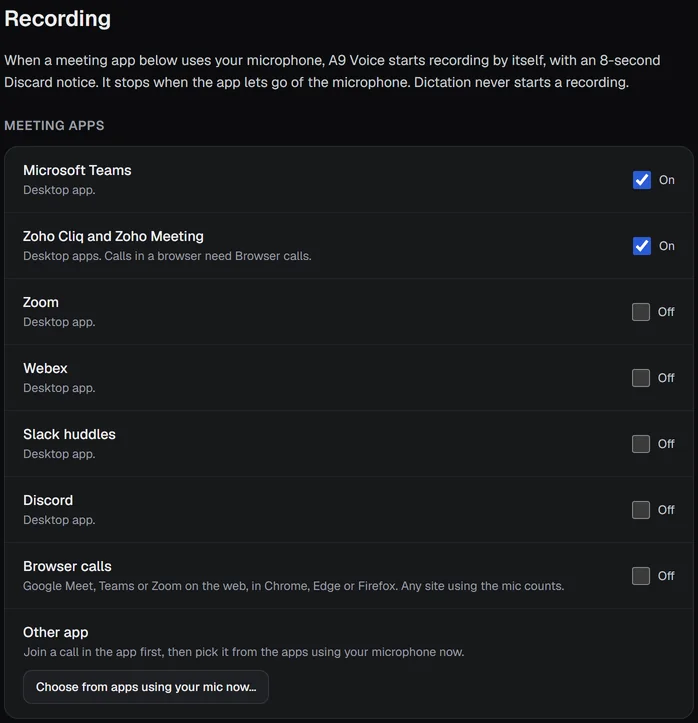
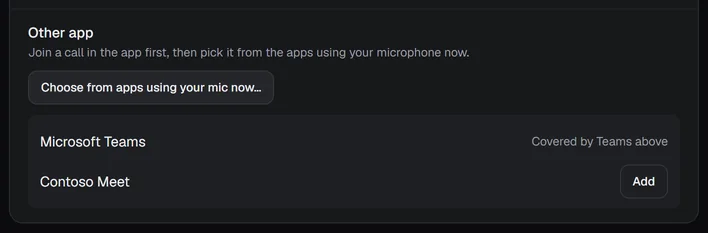
Dictation never starts a recording.
How it notices a call#
A9 Voice reads the list Windows keeps of which apps are using the microphone (the same list behind Windows' own "microphone in use" icon). It only reads it; it never changes anything. It looks every 2 seconds.
- The app must hold the microphone for 5 seconds in a row before a recording starts. A short blip does not start one.
- The app must also be running. An app that crashed and left a stale entry does not count.
- Only the apps you turned on count. If two of them are in a call at once, Teams goes first.
- If you discard a recording, or stop one that A9 Voice started, in the middle of a call, A9 Voice will not start another one in that same call. It waits until the app lets go of the microphone.
The 8-second notice#
When a call starts a recording, a card appears above the bar:
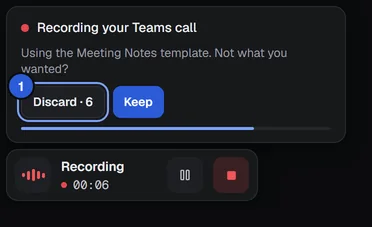
- Read it. It says which app it heard and which summary template it will use (Settings › Notes › Transcript & summary › Summary template).
- Press Discard within 8 seconds if this was not a call you wanted. The recording and its note are deleted.
- Press Keep, or do nothing. The card goes away after 8 seconds and the recording carries on.
The recording bar#
The bar is a small window that sits on top of your other windows. It never takes the keyboard away from the app you are in, so clicking it will not interrupt what you are typing.
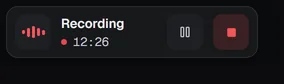
- The tile on the left moves with the sound on either side.
- Under Recording is the time so far, with a red dot.
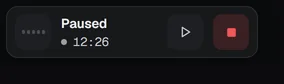
- Pause stops recording. Press it again (Resume) to carry on. Paused time is silence in the recording.
- Stop ends the recording. It asks first (see below).
Rest the mouse on the bar to show more buttons:

- Snip adds a screenshot to the note. See Live window.
- Live window opens or closes the live transcript. See Live window.
- Microphone and Computer audio choose what is recorded (next section).
- Minimize turns the bar into a mini pill. Double-clicking the bar does the same.
Choose the microphone and computer audio#
- Rest the mouse on the bar and press the Microphone button (or Computer audio).
- Pick one:
- Auto (Windows default) follows whatever Windows uses, and shows its name underneath.
- A device from the list.
- Off to stop recording that side.
- The last line shows the result, for example Recording from: and the device name. It says Not recording from this source when you chose Off.
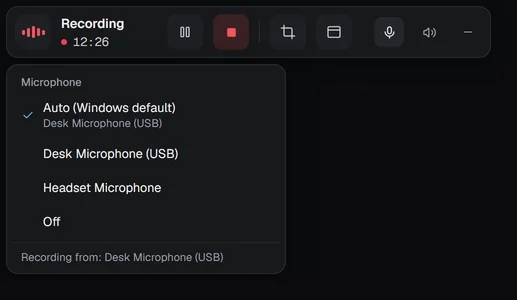
The change applies straight away, to this recording only. With Auto on computer audio, A9 Voice listens to every output and uses the one that is playing, so a headset that Windows switches to call mode still works.
The Computer audio button only shows when the recording includes computer audio. To set the defaults for every recording, use Settings › Notes › Recording › What gets recorded:
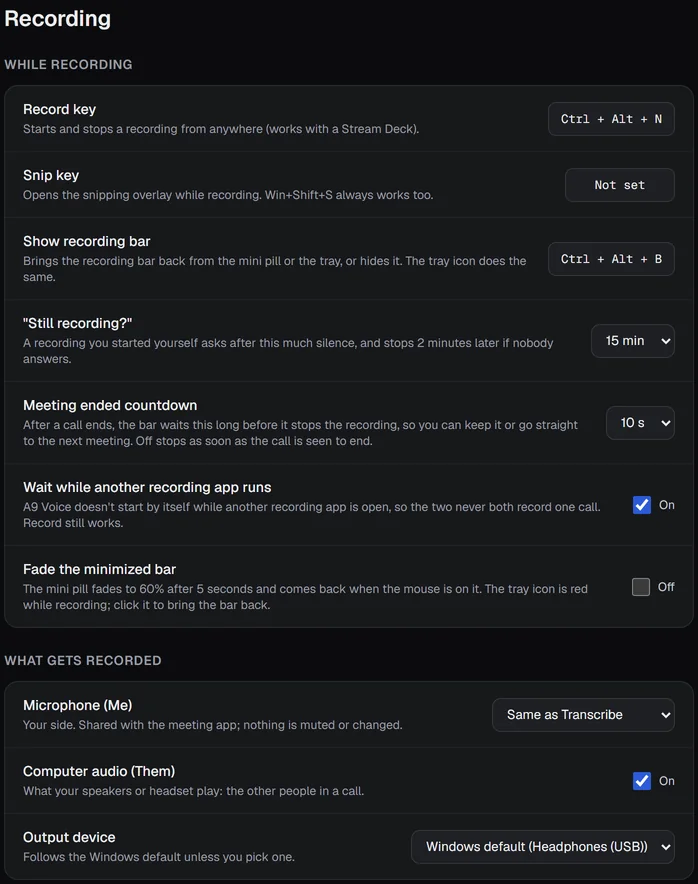
- Microphone (Me) is Same as Transcribe unless you pick another one.
- Computer audio (Them) is on or off, and Output device follows the Windows default unless you pick one.
- A summary template can switch computer audio off for the notes that use it (Capture system audio in Templates and export).
Move it, minimize it, bring it back#
- Move the bar: press on its background (not on a button) and drag. Near a screen edge it snaps to that edge. It always stays fully on a screen, never under the taskbar and never lost off the edge.
- Where it opens: the bottom right of your main screen, just above the taskbar. A9 Voice remembers where you put it for each set of screens, so a laptop on its own and the same laptop on a dock each keep their own place.
- Minimize: press Minimize or double-click the bar. It becomes a mini pill: a red dot and the time. The first time, a note says Minimized here. Click to restore, or use the tray icon. The mini pill first appears at the bottom right of the screen the bar was on. Drag it to move it; it remembers its own place. A grey dot means paused.
- Bring it back: click the mini pill, left-click the A9 Voice tray icon, choose Show recording bar in the tray menu, or press Ctrl+Alt+B. The same key hides a full bar again. The key is Show recording bar in Settings › Notes › Recording.
- Start over: right-click the tray icon and choose Reset bar position. The bar goes back to the bottom right of your main screen.
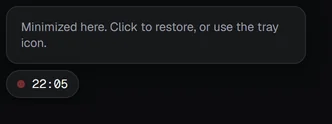
Fade the minimized bar in Settings › Notes › Recording makes the mini pill fade to 60% after 5 seconds. It comes back when the mouse is on it. It is off to begin with.
Stop recording#
Stop, or stop and discard#
Press the red square on the bar.
The bar asks Stop recording? Press Stop to keep the recording. A9 Voice saves it and starts the transcript. Press the x (or Esc) to carry on recording.
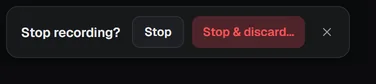
Stop keeps the recording. Stop & discard asks once more. To throw it away instead, press Stop & discard…. The bar asks Discard this recording? It's deleted from this PC. Press Discard to delete it, or Keep recording to carry on.

Discard deletes the audio, the files and the note.
The tray's Stop recording, the record key, the Stop button in the sidebar and the stop button in the Live window all stop and keep right away, without asking.
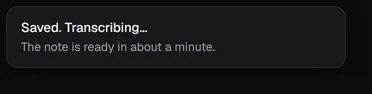
After you stop, a card says Saved. Transcribing….
When a recording stops by itself#
The call ends. When a recording belongs to a call and the app lets go of the microphone for 4 seconds, A9 Voice shows Meeting ended, Stopping in 10 s. with Stop now, Next meeting and Keep recording, and a thin bar that runs down. If you do nothing it stops and keeps the recording. This also applies to a recording you started by hand while a call was going: it is linked to the call and ends with it. Stop now during the countdown never holds the next call back: a call that starts afterwards is recorded by itself as usual.
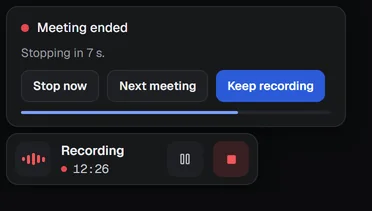
Keep recording turns it into your own recording: only you stop it (or the end of the next call). Your next meeting starts right away. Press Next meeting, or press the record key during the countdown: the first meeting is saved and the next one starts straight away, in its own note, with less than a second of audio missing between them. The toast says Saved. Recording the next meeting. If a call is already on the microphone it is linked to the new note; otherwise the note links to the call when one starts.
The call comes back. If the microphone opens again during the countdown, the countdown is cancelled and the card changes to Call is back with New meeting and Same meeting. Pick New meeting when this is a different meeting: the first one is saved and a new note starts. With no answer in 15 seconds it stays the same meeting, which is right for a reconnect after a network blip.
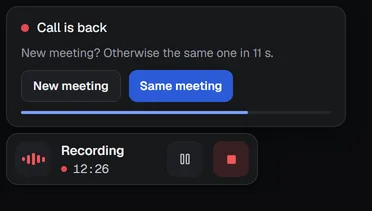
Without an answer it stays the same meeting. The meeting's name changed. A9 Voice reads the meeting window's title while a call recorded by itself runs. By default it only writes down in the log (
logs\meeting-titles.jsonlon this PC) that a different name means a new meeting and would split the note; it doesn't split yet.Nobody is talking. A recording you started yourself asks Still recording? after a stretch of silence on both sides. You choose how long in Settings › Notes › Recording › "Still recording?": 5, 10, 15 (the default), 30 or 60 minutes. The card says how long is left. Press Keep recording to carry on, or Stop now. With no answer it stops and keeps the recording 2 minutes later. If someone starts talking again, the card goes away. Paused time counts as silence. Recordings that a call started do not ask; they end with the call.
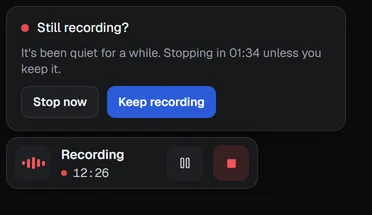
The card counts down. Any sound clears it. Four hours. Every recording stops after 4 hours, and the recording is kept.
A recording you start by hand with no call going on is never stopped by A9 Voice except by the last two rules: silence and the four-hour limit.
If you would rather not wait, set Settings › Notes › Recording › Meeting ended countdown to 5 s, 10 s (the default) or 30 s. Off stops the recording as soon as the call is seen to have ended, 4 seconds after hang-up, with no card.
When a call is not recorded#
If Settings › Notes › Recording › Wait while another recording app runs is on (it is on to begin with), A9 Voice does not start by itself while another recording app is capturing the call, so two apps never record the same call. An app that is merely open, with its own recording off, does not hold A9 Voice back.
When that happens the bar says so, so a missing recording is never a surprise:
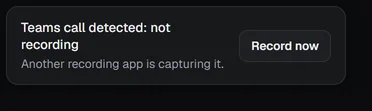
- Read Teams call detected: not recording and Another recording app is capturing it.
- Press Record now if you want A9 Voice to record it too. The message stays for 30 seconds. The Record button and the record key always work, with or without this setting.
After you stop#
The note stays in the Notes list and shows what it is doing: Transcribing… (with a percentage when the speech model runs on this PC), Summarizing…, or Waiting…. A note that could not be finished shows Needs a look; open it to see why.
- A call that A9 Voice started is called "Teams call" (or the app's name) until the note is named. A recording you started by hand is called "Recording".
- When the note is ready, a card on the bar says Note ready with an Open button.
- The speech model that makes the transcript is chosen in Settings › Notes › Transcript & summary › Speech model. It can be a cloud service with your own key or a model on this PC; see Speech models.
- Telling the other people apart (Speaker 2, Speaker 3 and so on) depends on that model. Deepgram, ElevenLabs and models on this PC tell speakers apart. Other models only label lines as you and the other side. Turn Identify speakers off to stop separating them.
- The summary comes from the language model and template you chose; see Language models and Templates and export.
Name notes after the meeting#
Settings › Notes › Transcript & summary › Name notes after the meeting has three choices:
- On: during the first 90 seconds of a call, A9 Voice reads the title of the meeting window in Teams, Zoho Cliq or your browser and uses it as the note's name. The folder reads like "2026-10-06 Sprint Standup". Windows with no real meeting name, such as the main Teams window, are ignored.
- Only log what it would choose: A9 Voice does not rename anything. It records what it would have chosen in a small log file on this PC, so you can check it.
- Off: the AI names the note.
A title you type yourself always wins. When no usable name is found, the AI names the note after the summary.
Record something that is not a call#
A video, a webinar, a voice note to yourself: press Record (or Ctrl+Alt+N) and play or speak.
- A video or webinar comes in on Computer audio; your own voice comes in on Microphone. In the list the note says Computer audio, Mic only or Mic + computer audio so you can tell them apart.
- Turn Microphone or Computer audio to Off on the bar if you only want one side.
- Nothing here stops on its own except the rules above. Press Stop when you are done.
Dictating during a meeting#
Dictating into another app while you record does not end up in the note. While you dictate, the microphone side of the recording is silent, and the words you dictated are removed from the transcript. This is Keep dictation out of notes in Settings › Notes › Live window and it is on to begin with. Turn it off if you want everything you say in the note.
The recording badge#
While you record, Windows shows it outside A9 Voice's own windows:
- Taskbar button: a small red dot that pulses gently about once a second. While paused it is a grey pause mark. The A9 Voice icon itself never changes color.
- Tray icon: the usual icon with a small red dot, or a grey pause mark while paused. Hover it for A9 Voice · Recording a note. Click to show the recording bar. Click it to bring the bar back.
- Tray menu: Stop recording (it says Start recording when nothing records), Show recording bar, and Reset bar position.
Red is only used for recording, so a red dot always means a recording is running.
Your responsibility#
Some places require everyone's permission before you record them. You are responsible for any consent your location requires before you record or recognize people.
If something goes wrong#
- A call did not start a recording. Check that its app is turned on in Settings › Notes › Recording, that the app is really using the microphone (join with audio), and that the call is longer than 5 seconds. Check Wait while another recording app runs too. Press Record to start by hand.
- I do not see the bar. Press Ctrl+Alt+B, or left-click the tray icon, or choose Reset bar position in the tray menu.
- The other people are not in the note. Check that Computer audio is not Off on the bar and that the right output is chosen.
- Everything is labeled Me and Them. The speech model does not separate speakers. Choose another in Settings › Notes › Transcript & summary.
More in Troubleshooting.
Related#
- Live window: the transcript beside a call, and naming the people.
- The note page: what you get when the recording is finished.
- Speech models: cloud or on this PC.
- Keyboard shortcuts and Settings reference.
Something missing or wrong? Report an issue, or use Copy diagnostics in Settings › General when asking for help.