
Manual · Transcribe
Dictionary
Teach A9 Voice the names and jargon you use, and fix the words it keeps getting wrong. Use it when a name comes out misspelled every time.
Last updated for A9 Voice 0.6.13
The Dictionary has two lists. Vocabulary is words to listen for. Always replace is a list of fixes: when A9 Voice hears one phrase, it writes another. The same lists work for dictation and for meeting notes.
Click Dictionary in the sidebar. A new install starts with both lists empty.
To see a word and a fix added, and where the spelling shows up:
 Custom wordsWatch the 40-second video
Add vocabulary#
Use vocabulary for names, products and jargon: anything the speech service might otherwise spell as an ordinary word.
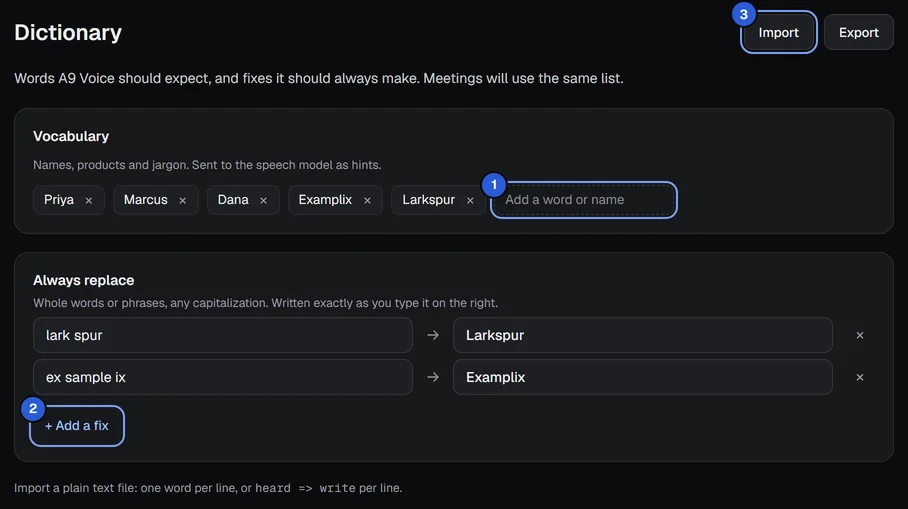
- Click Add a word or name (number 1 above) and type the word, for example a colleague's surname.
- Press Enter, or click somewhere else. The word becomes a chip in the list.
- To remove a word, click the × on its chip.

Adding the same word twice, in any capitalization, does nothing the second time. Write each word the way you want it spelled.
What vocabulary does#
The words are sent to the speech service as hints, so it is more likely to hear and spell them correctly. Deepgram, Groq, OpenAI and custom speech servers use the hints. Deepgram takes the first 100 words in your list, so keep the ones that matter most near the start. ElevenLabs and speech models on this PC do not use the hints; use Always replace for those.
The same list is also used when Enhance with AI tidies a dictation, when a meeting is transcribed, and when a meeting summary is written, which is told to spell these words as you wrote them.
Add a fix#
Use a fix when the same mistake keeps coming out, for example a name that is always heard as two words.
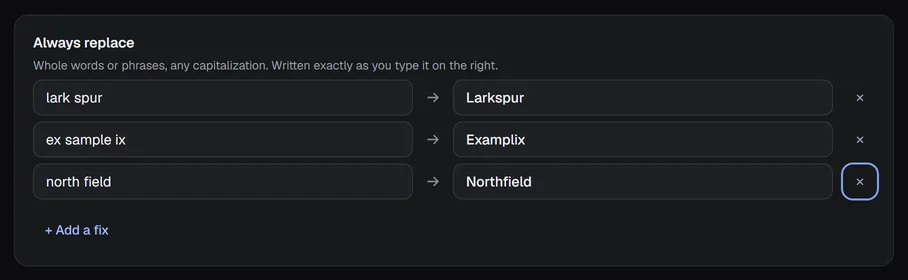
- Click + Add a fix (number 2 above). A new row appears.
- In the left box (Heard), type what A9 Voice writes now, for example
lark spur. - In the right box (Write), type what you want instead, for example
Larkspur. - Click out of the box. The fix is saved.
- To remove a fix, click the × at the end of its row.
How a fix matches#
- Whole words or phrases. A fix for
catchanges "cat" but not "concatenate". A phrase such aslark spurmatches those words one after the other, however they are spaced. - Any capitalization.
lark spur,Lark SpurandLARK SPURall match. - Written exactly as you typed it on the right. If you type
Larkspur, that is what appears, whatever the capitalization of what was heard. Characters such as$are written as they are. - The longest phrase wins. If you have a fix for
seeand another forsee em dee bee, the longer one is applied first, so the phrase is not broken up. - Rows with an empty Heard box are ignored.
Fixes are applied to the text that comes back from the speech service, before Enhance with AI and before the text is inserted. They also apply to the transcript of a meeting note. Fixes work with every speech service, including those that do not use vocabulary hints.
Add a fix from a note#
When you correct a word in a note's transcript (double-click a line, change one word, press Enter), A9 Voice offers to apply the change everywhere. Tick Add to Dictionary and click Apply to also save the fix and the spelling here. It is not ticked unless you tick it.
Import and export#
The Import and Export buttons (number 3 above) share lists with a plain text file. Use them to move your Dictionary to another PC or to share it with a colleague. Windows opens its normal file window; A9 Voice cannot show that window here.
- Export saves a text file. It suggests the name
a9voice-dictionary.txt. The message Exported. appears when it is done. - Import opens a text file (
.txt). A message says Added or updated 3 entries. (with the real number), or Nothing new in that file. Importing only adds and updates: it never deletes your existing words or fixes.
The file format#
One entry per line:
- A line with a single word or phrase is vocabulary.
- A line like
heard => writeis a fix.→works in place of=>. Both sides need text. - Blank lines, and lines that start with
#, are skipped.
An exported file looks like this:
# A9 Voice dictionary
# Vocabulary: one term per line
Priya
Larkspur

# Replacements: heard => write
lark spur => Larkspur
ex sample ix => Examplix
If a fix in the file has the same Heard phrase as one you already have, in any capitalization, its Write side is updated. Vocabulary that you already have, in any capitalization, is not added again. You can write the file by hand in Notepad.
Your Dictionary is also included when you export your data from Settings › Account, which makes a zip of your settings, Dictionary, templates and tag names. API keys are never included.
If something goes wrong#
- A word is still misspelled. If your speech service ignores hints, add a fix as well: put the misspelling in Heard and the right spelling in Write.
- A fix changes words you did not mean. Fixes match whole words in any capitalization, so a short phrase such as
seematches every "see". Make Heard longer and more specific. - The import says "Couldn't read the file". Choose a plain text file saved as
.txt.
Related#
- Transcribe: how a dictation flows from speech to text.
- The note page: correcting a transcript.
- Speech models: which services use vocabulary hints.
Something missing or wrong? Report an issue, or use Copy diagnostics in Settings › General when asking for help.