
Manual · Notes
Search and Ask
Find anything you or anyone said in your notes with Ctrl+K, and add folders of older notes to search alongside the new ones. To ask a question and get an answer, see Asking your notes.
Last updated for A9 Voice 0.7.1
Search finds words in your notes. Ask answers a question from them, on its own page (see Asking your notes). Both read one index that A9 Voice keeps on your PC, and both open the note at the moment you need.
To see a search, a question and an answer with links:
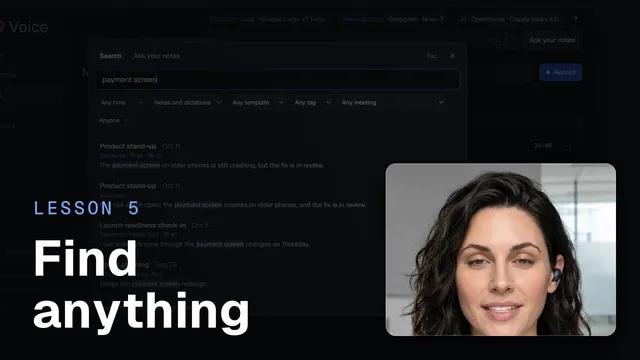 Find anything and ask your notesWatch the 40-second video
What gets searched#
- Every note's title, summary, transcript, the notes you typed during the meeting, image captions and action items.
- Your dictations, unless you switch off Search dictations too (see Search dictations too).
- Folders of past notes you add yourself (see Also search these folders).
The index is a file called search.db in A9 Voice's data folder, on your PC. It is kept current in the background, soon
after a note changes. Notes are read from their files in the Notes folder, so an edit you make outside A9 Voice, in
summary.md or transcript.md for example, counts too.
Search#
Press Ctrl+K in the A9 Voice window, or click the search box at the top of Home or Notes. Press Ctrl+K again, or Esc, to close it. The box is marked 1 below. The button marked 2, Ask your notes, opens the Ask page.

Type what you remember. Every word you type has to match, and each word also matches longer words that start with it, so "approval routing" finds "approvals" and "routing".
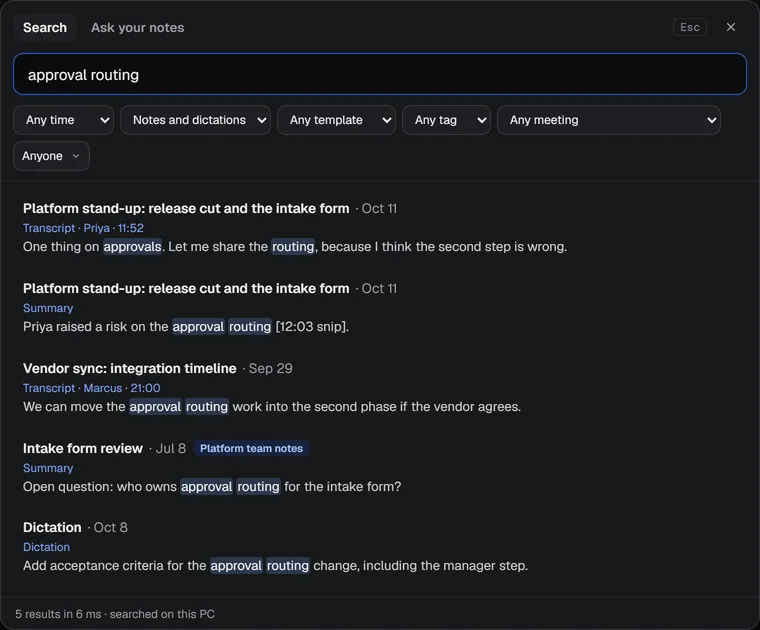
Matches are highlighted. The footer says how many results and that the search ran on this PC. Each result shows the note's title and date, what part matched (Title, Summary, Transcript, Typed note, Image, Action item or Dictation), who said it and when, and a snippet. A result from an added folder carries a badge with that folder's name. If nothing matches, the panel says so, and tells you if your filters are the reason.
Click a result. The note opens at that moment, with the transcript line highlighted. A dictation result opens your dictation history instead.
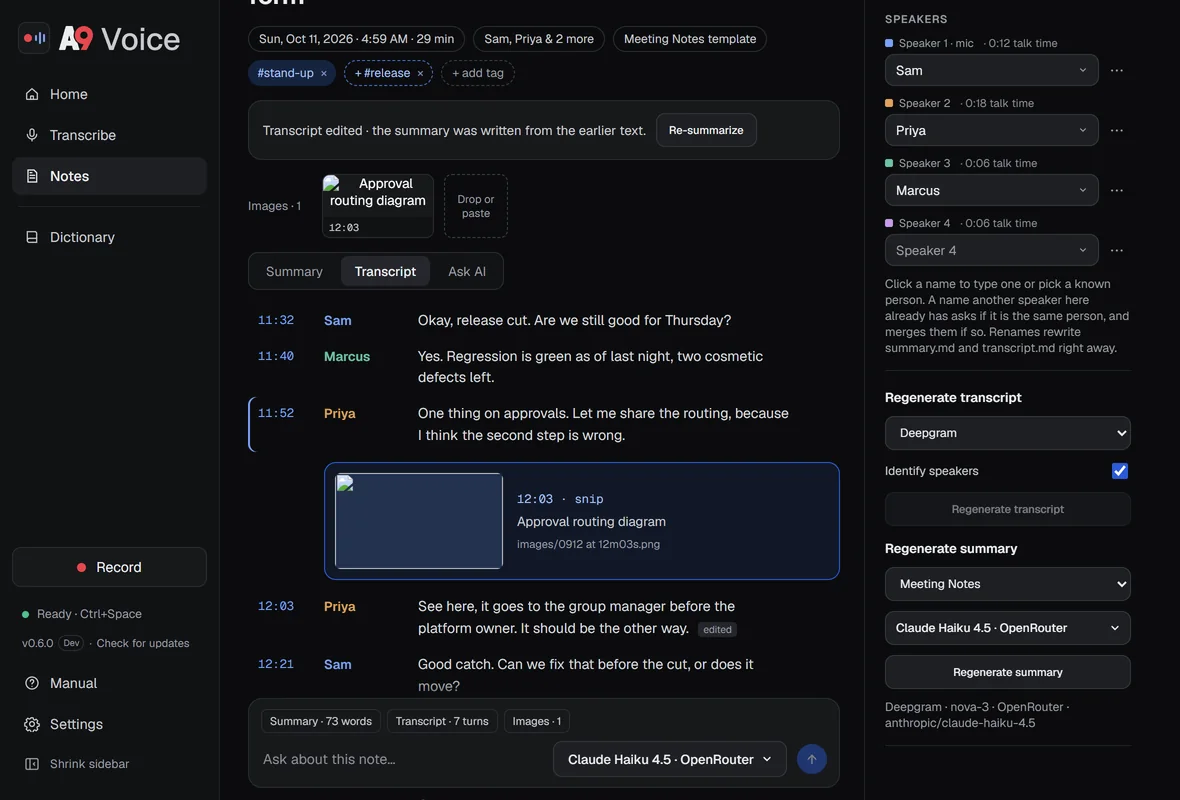
The note opens on the line you searched for.
Narrow it down#
The row of menus under the box limits what is searched. Changing one runs the search again.
- When: Any time, Past week, Past month or Past year.
- What: Notes and dictations, Notes or Dictations. Dictations is greyed out when Search dictations too is off.
- Template: only notes made with one template.
- Tag: only notes with one tag.
- Same meeting: only notes of a meeting that comes back again, such as a weekly stand-up. It appears when you have meetings with the same name on different days.
- Person: only notes where that person spoke.

Ask your notes#
Ask when you want an answer instead of a list. Ask has its own page in the sidebar, with a Quick, Deep and Template control next to the Ask button, filters, citations that open the note at the moment, your recent questions and a follow-up. Everything about it is on Asking your notes.
From here, you can ask in two ways:
- Click Ask in the sidebar, or the Ask your notes button next to the search box on Home or Notes.
- Press Ctrl+K and open the Ask your notes tab. It has the same control and filters, and Open in Ask carries the question and its answer over to the Ask page.
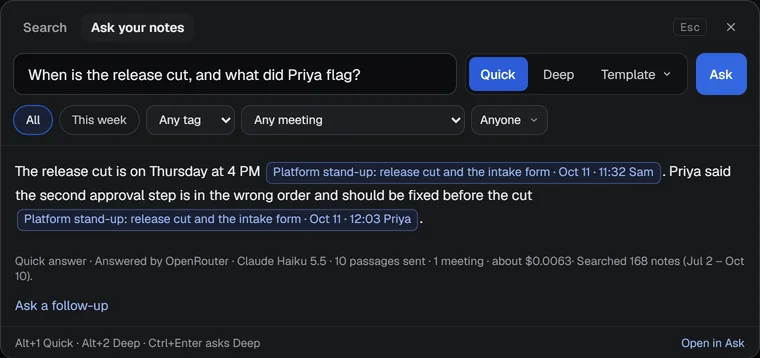
Questions asked here are in Recent questions on the Ask page too. Only the passages A9 Voice picked go to your language model; see What Ask sends and where it goes.
Search dictations too#
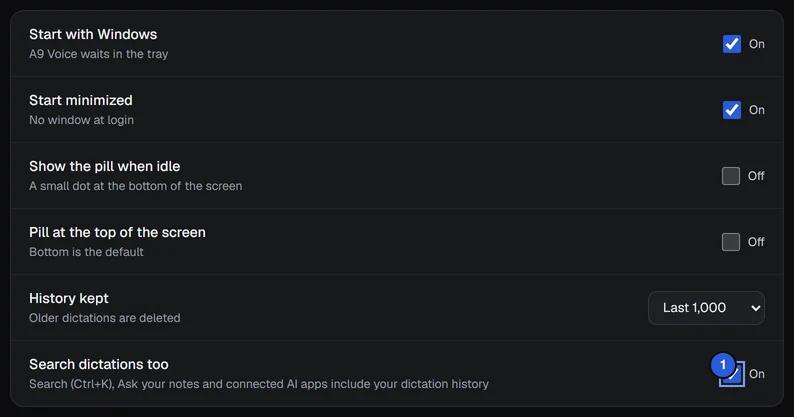
Search and Ask can include everything you have dictated. This is on to begin with. To leave dictations out, open Settings › General and switch off Search dictations too. The same switch decides whether connected AI apps (see the connector) can see your dictation history.
Also search these folders#
You can also search notes you kept before A9 Voice: folders of past notes, Markdown or text files, or exports that have a summary and a transcript file. A9 Voice only reads these folders. It never changes, moves or deletes anything in them.
Open Settings › Notes › Search.
Under Also search these folders, click Add folder... and choose the folder.
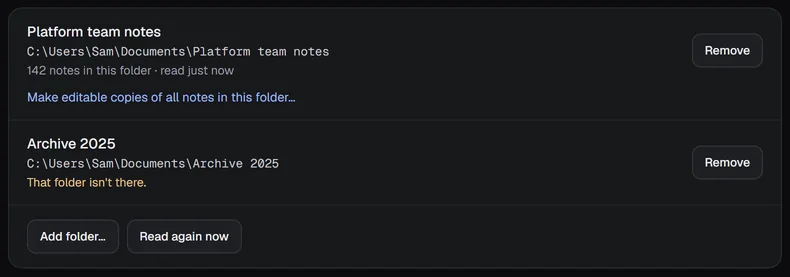
A9 Voice reads the folder. Its row shows the folder's name, its path and what is in it, such as "142 notes in this folder · read just now". The count fills in while the folder is read for the first time.
The row counts notes in the folder itself:
- N notes in this folder is every note A9 Voice can read there.
- M already copied into A9 appears when some of those notes already have an editable copy in your Notes folder. Search shows the copy, so they are not indexed twice. Notes that are copied still count here, so a folder whose notes are all copied reads "13 notes in this folder · 13 already copied into A9", not zero.
- K couldn't be read appears when files were skipped (over 20 MB, in use by another program, or no access). Click it to open the logs folder, which names the files.
- includes Name appears when you also added a folder inside this one. Each note is read once, under the inner folder's row.
You can't add the folder that holds your A9 Voice notes, a folder inside it, or a folder that contains it. Those notes are already searchable, and the Settings page says so.
What counts as one note: a folder holding a summary and/or a transcript (summary.md, transcript.md or .txt
versions of them), with notes.md and an audio file beside them if there are any; and otherwise each Markdown or text
file on its own. Formats are told apart by what is in the files, not by which app wrote them. A9 Voice's own note folders
are skipped, so a folder that contains your Notes folder does not count notes twice.
Good to know:
- The badge is the folder's own name. That is what shows next to results from it.
- Changes are picked up as they happen, and every folder is read again once a day. Read again now does it immediately. Remove stops searching the folder and forgets what was read from it. The folder itself is not touched.
- A folder can't overlap another. You can't add your own Notes folder, a folder inside it, or a folder that overlaps one you have already added. The app says which.
- If a folder goes missing, its row shows the problem, for example "That folder isn't there."
The first-run hint#
When you open Notes, A9 Voice looks next to your Notes folder for other folders that hold at least three notes. If it finds some, it asks "Bring in your older meetings?" and names them. Add folder adds them; Not now dismisses the question for good. If it finds none and you have added no folder, a plain link "Add a folder of past notes" is there instead.

Open a note from an added folder#
A result from an added folder opens as a read-only note, with the badge and Read only at the top. You can read the summary and transcript, play the audio if the folder has some, and use Open in folder.
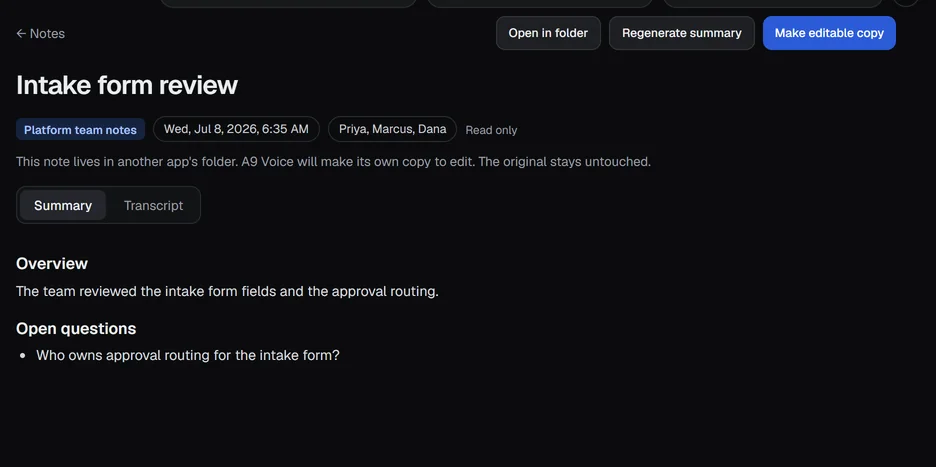
To change it, click Make editable copy. A9 Voice puts a copy in your Notes folder with the original date, and the original stays untouched. If you start to edit something (rename a speaker, edit a line, or Regenerate summary), it asks "Make an editable copy to do this?" first, then carries on in the copy. Once a copy exists, search shows the copy instead of the original, and the original's page offers Open it. Copies are never used to teach voices.
Copy a whole folder#
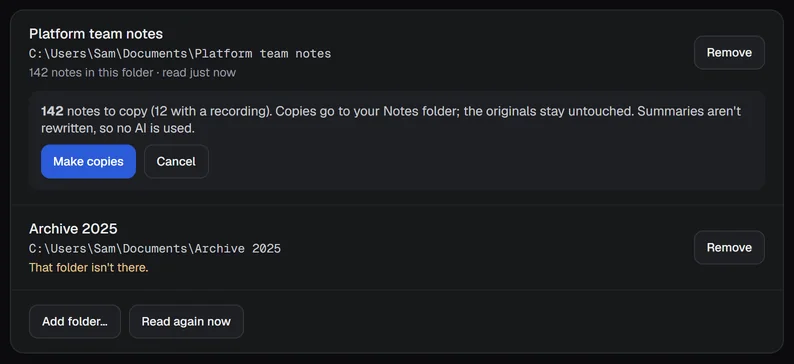
Under a folder's row, Make editable copies of all notes in this folder... copies everything in one go.
- Click it. A9 Voice says how many notes it will copy (and how many have a recording), that the copies go to your Notes folder, that the originals stay untouched, and that summaries aren't rewritten, so no AI is used.
- Click Make copies. A progress bar shows "Copying 3 of 142".
- When it says "Made N editable copies", you can also rewrite their summaries with a template of your choice. Click Show the cost... first: it shows about what it will cost with which model. Regenerate summaries then works through them one at a time. Not now leaves the old summaries as they are.
If something goes wrong#
- A note you just made is not found. Give it a few seconds: the index updates in the background.
- Search finds nothing in a folder you added. Check the folder's row on Settings › Notes › Search for a message, then try Read again now.
- Ask says to add a key, or answers from a different model than you chose. See Asking your notes.
- Dictations never show up. Check that Search dictations too is on in Settings › General.
More in Troubleshooting.
Related#
- Asking your notes: the Ask page, Quick and Deep, and the answer templates.
- The note page: ask about one note, and read it in full.
- Connector for AI apps: let Claude or ChatGPT search the same notes.
- Language models: the keys Ask needs.
- Voices: names for the people in your notes.
Something missing or wrong? Report an issue, or use Copy diagnostics in Settings › General when asking for help.